Get started
Step 1
Make an agreement with your bank
Prerequisites
The payment recipient ("Payee") must have a business account with a bank. The Payee must enter into an agreement with the bank to use the Electronic Agreement service (Elektronisk avtaleinngåelse).
The Payee must also enter into agreements with the bank to use AvtaleGiro and must have an accounting system that generates KID.
Step 2
Create an HTML form in the company's website
Interaction with E-Agreement is via an HTTP POST request
Create an HTML form in the company's website with one of these URLs to be the recipient of the submitted form:
For test: https://mtf.pvu.avtalegiro.no/ecsa/start
For prod: https://pvu.avtalegiro.no/ecsa/start
The application receives a payee request via a http post. The request can have the following parameters:
Parameter name | Mandatory | Allowed values | Description |
|---|---|---|---|
companyAccountNo | Yes | 11-digit | The company's bank account number (only Norwegian accounts are accepted, and the company must have an agreement with their bank to use the service) |
kid | Yes | Numeric string | Unique identification of payer (minimum 3, maximum 25 digits) |
amountLimit | No | Positive integer | The maximum amount that the customer may be charged via AvtaleGiro within a calendar month. If not submitted, it will default to NOK 10000. The value may be changed by the payer. |
notificationDisabled | No | true/false | Sets the default notification setting, which the payer may change. If true, the payer will NOT receive notification of new AvtaleGiro payment claims. |
companyName | No | Alphanumeric, | The name of the company, as it should be displayed to the user. |
returnUrl | No | Valid URL | The URL to which the user should be directed after completing or cancelling the AvtaleGiro onboarding process. |
SSN | No | String | Social Security Number of the user (pre-fills and locks SSN on BankID page) |
amount | No | Decimal | If given, it will setup the first payment for the payer with the bank with the stated amount. The amount will be shown to the payer during the payment setup. |
Code example
<form action="https://mtf.pvu.avtalegiro.no/ecsa/start" method="post">
< input type="hidden" name="companyName" id="companyName" value="INSERT_COMPANY_NAME_HERE" />
<input type="hidden" name="companyAccountNo" id="companyAccountNo" value="11110500019" />
<input type="hidden" name="kid" id="kid" value="6886868899" />
<input type="hidden" name="amountLimit" id="amountLimit" value="INSERT_SUGGESTED_AMOUNT_LIMIT_HERE" />
<input type="hidden" name="returnUrl" id="returnUrl" value="INSERT_RETURN_URL_HERE" />
<input type="hidden" name="notificationDisabled" id="notificationDisabled" value="true" />
<input type="hidden" name="SSN" id="SSN" value="01010112345" />
<input type="submit" id="submit" value="submit" />
</form>
Test users
The following test users may be used for BankID authentication in the test environment of E-Agreement. Please ensure that users are not locked due to typing the incorrect OTP/password more than 3 times.
| Personal number | One-time code | Password |
|---|---|---|
| 01014634734 | otp | qwer1234 |
| 04066100168 | otp | qwer1234 |
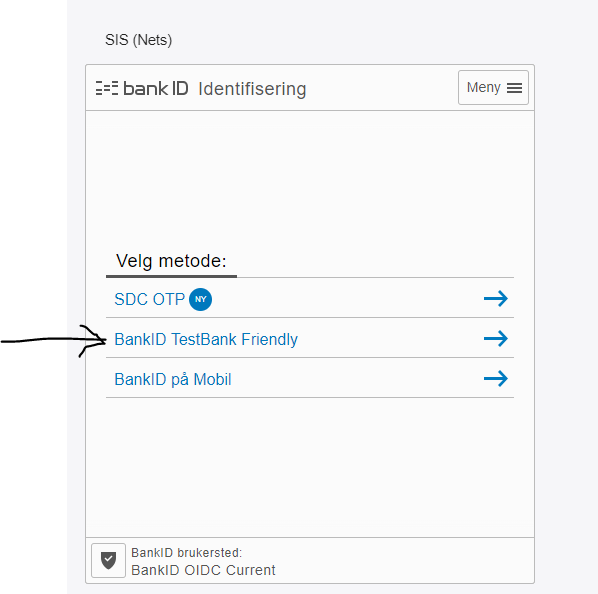
Once you reach BankID screen, choose "BankID TestBank Friendly" option -
Test account
The following test account may be used for testing in test environment(MTF).
| companyAccountNo | KID | |
|---|---|---|
| 11110500019 | 6886868899 | |
Step 3
Response Parameters -
The return URL provided as an input parameter is used in the following scenarios:
Once the user completes the signing process, a button with value "Fullfør" is displayed to the user. Upon clicking this button, the user will be directed to the return URL with status "OK".
If the user cancels the process, the user is directed to the return URL with status "Cancel".
If the signing process cannot be completed due to error, the user is directed to the return URL with status "Error".
Parameter "Status"
A "status" parameter is added to the URL in all the above cases and may have the following values:
Description | Values |
|---|---|
Agreement is signed and will be established | OK |
Agreement signing has been interupted by the customer | Cancel |
One or more subsystems are unavailable | Error |
Parameter "paymentStatus"
A parameter "paymentStatus" will be added to the url in case payee chose for the first time payment to be setup. Once the setup is completed, the payment status (success or failure) will be returned as part of the return URL.
e.g. - https://creditor.example.com/return?status=ok&paymentStatus=success